 Velo Workspaces
Written with the help of an AI assistant, and reviewed by me.
Here's a puzzle you may have met. A folder of virtual machine disks shows about 180 GB in Finder, on a Mac whose whole SSD is 256 GB and which still has over 90 GB free.
Neither number is wrong. They're counting different things. APFS, the file system Macs have used since macOS High Sierra, has two features that let a file take up less space than its size suggests: clones and sparse files. Finder doesn't show you either one.
Knowing how they work explains numbers that don't add up. It also explains why copying a folder to an external drive sometimes needs far more space than you expected.
Clones: copies that share their data
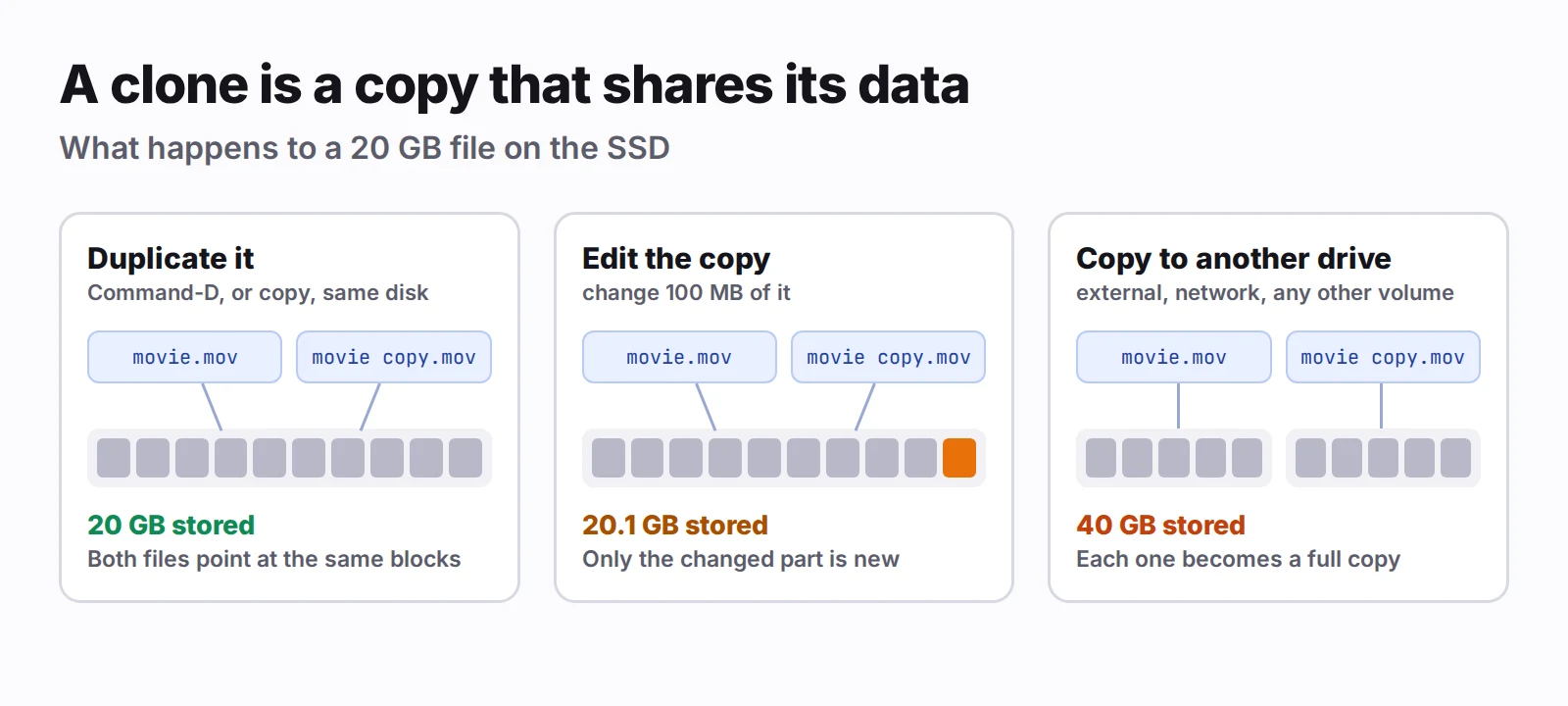
Duplicate a 20 GB file in Finder with Command-D and the copy appears instantly. That's not because your SSD is fast. Nothing was copied.
When you copy or duplicate a file to somewhere on the same volume, macOS makes a clone. The new file has its own name, its own place in a folder and its own dates, but its data is the original's. Both files point at the same blocks on the SSD.
The sharing ends only where you make changes. Edit the clone, and APFS writes the changed parts somewhere new for that file alone; the rest stays shared. Change 100 MB of a 20 GB clone, and the pair takes 20.1 GB, not 40.
 Click to enlarge
You can make one in Terminal, too:
cp -c big-file.iso copy.iso
The -c asks for a clone. Without it, Terminal's cp copies every byte.
Where clones fool you
Finder counts every clone at full size. Three duplicates of a 20 GB file show 20 GB each, and the folder holding them shows 60 GB, even though they take 20 between them. That's how a folder can show 180 GB on a Mac that doesn't have it.
Deleting a duplicate may free almost nothing. If the data is still shared with another file, it stays on disk. You get back only what was unique to the file you deleted.
Clones exist only within one volume. Copy them to an external drive, a network share, or even another APFS volume, and each one becomes a full copy. That 60 GB folder really does need 60 GB on the other side. The one exception reported by people who've tested it is Time Machine backing up to an APFS disk, which keeps clones as clones.
Sparse files: big on paper, small on disk
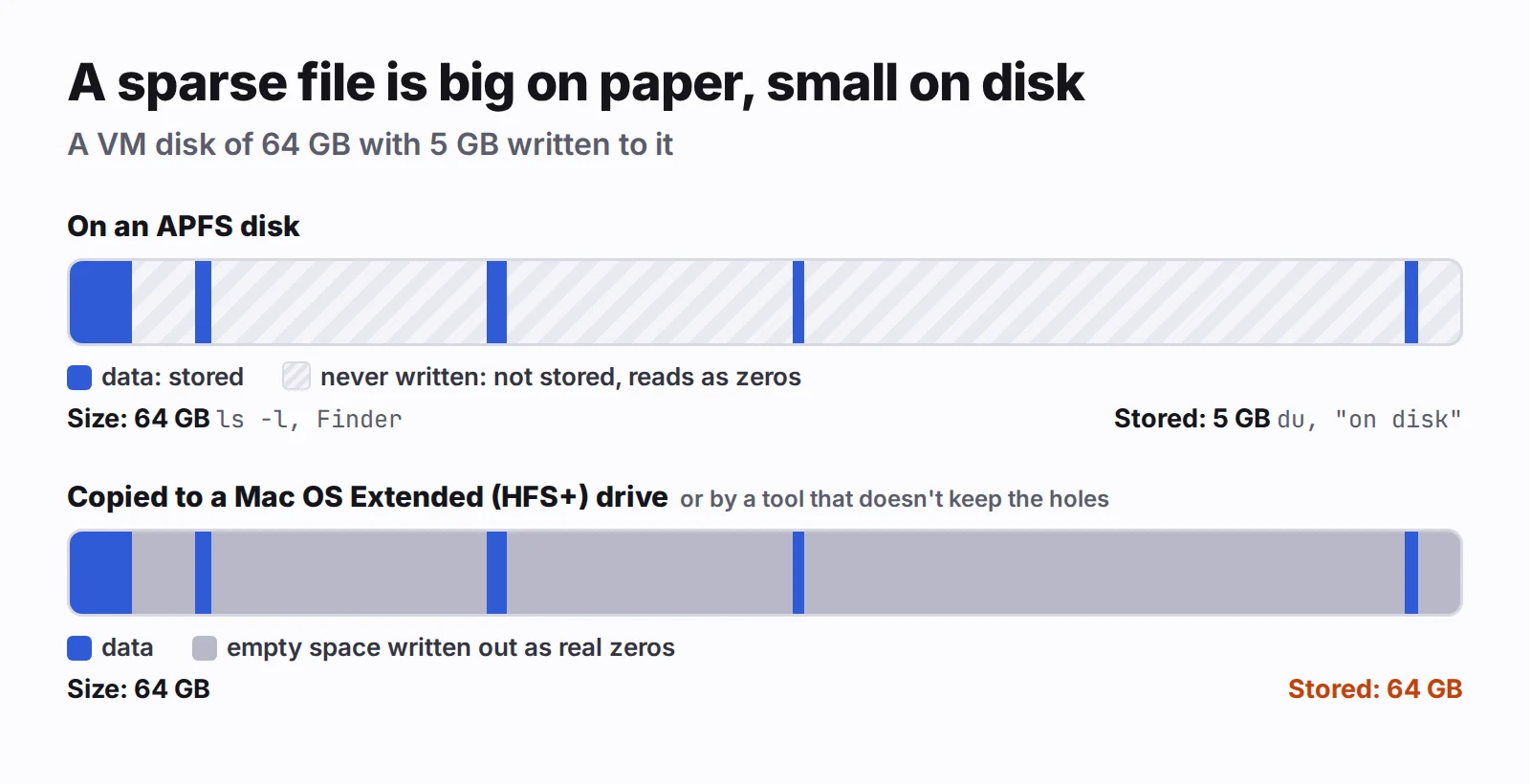
A sparse file is one whose size is larger than what's stored. If an app creates a 64 GB file but writes only 5 GB of data into it, APFS stores just the 5 GB. The rest is recorded as "nothing here yet," and reading it gives zeros.
Virtual machine disks are the classic case. When you give a VM a 64 GB disk, the app usually creates a 64 GB sparse file, or a disk format that grows the same way. It fills up only as the system inside writes data. Docker Desktop's disk image on a Mac works the same way.
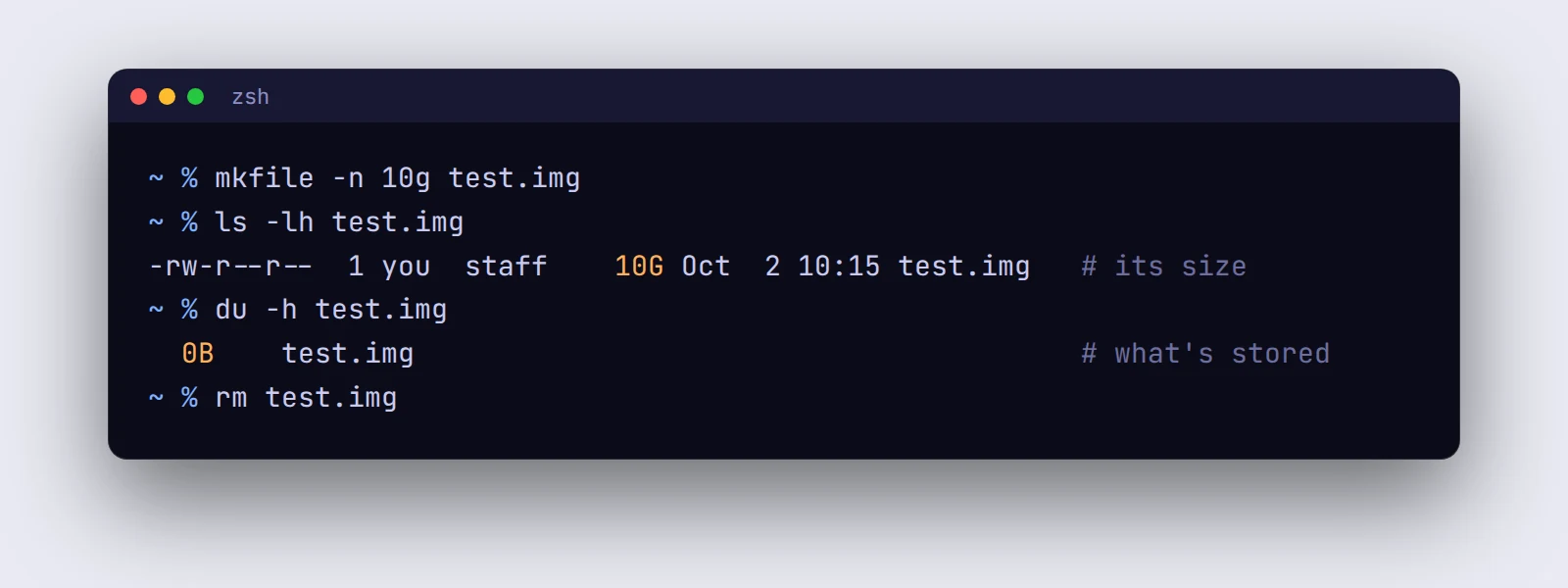
You can see it for yourself in Terminal. This makes a 10 GB sparse file, shows both of its numbers, and deletes it:
mkfile -n 10g test.img
ls -lh test.img
du -h test.img
rm test.img
 Click to enlarge
ls reports the file's size. du reports what's actually stored.In Finder, Get Info shows both numbers too: the size, and the space the file takes on disk.
Where sparse files fool you
The empty space stays empty only on APFS. Copying a sparse file to another APFS disk keeps it sparse. Copy it to a drive formatted as Mac OS Extended (HFS+), and the empty space is written out as real zeros: your 5 GB VM disk becomes 64 GB.
 Click to enlarge
Not every tool keeps the holes. Finder and Time Machine to APFS keep them. Some other backup and sync tools may write the file out at its full size. If a backup of a folder of VM disks is mysteriously huge, this is the usual reason.
Space used inside a VM isn't always given back. When the system inside the VM deletes files, the disk file on your Mac doesn't necessarily shrink. Whether it does depends on the VM app and on the system inside it.
How to see the real numbers
- Free space is always true. System Settings › General › Storage, or
df -h ~in Terminal, shows what's actually free on the volume. When other numbers disagree with it, trust this one. du -shis right about sparse files and wrong about clones. It counts what each file stores, so it isn't fooled by a sparse VM disk. It does count every clone in full, because it can't see that their data is shared.- Finder's sizes are file sizes. They're the number the file claims, which is useful, but not what your SSD is holding.
There's no built-in way to ask "how much of this folder is shared with something else?" That's the one question APFS keeps to itself.
What this means day to day
- Duplicate big files freely on the same disk, before editing a large video project or trying something risky with a disk image. A clone costs nothing until you change it.
- Don't trust a folder's size before a move to another drive. Clones become full copies there, and sparse files can too. Check that the destination has room for the full sizes.
- Don't delete duplicates to free space without checking free space before and after. If they were clones, you may get little back.
- Format external drives as APFS when you'll copy VM disks or other large sparse files to them. HFS+ writes the empty space out in full.
Both features are also why Velo Workspaces can give you a throwaway copy of a 20 GB Linux disk in a fraction of a second: a workspace cloned from a base image gets an APFS clone of its disk, and the disk itself is a sparse file. It takes no extra space until it changes. Base image vs. snapshot vs. clone explains how the app uses them.